

Before you create an inbox
- Add and verify a domain for sending. The inbox address must use that domain.
- To receive email at the inbox, the domain also needs receiving enabled with an MX record. If you can’t change the MX record, set up forwarding instead.
- Inboxes are billed separately from the rest of your plan. When you create an inbox in the dashboard, Resend shows what applies to your account. See pricing for details.
Create an inbox
Using the dashboard
1
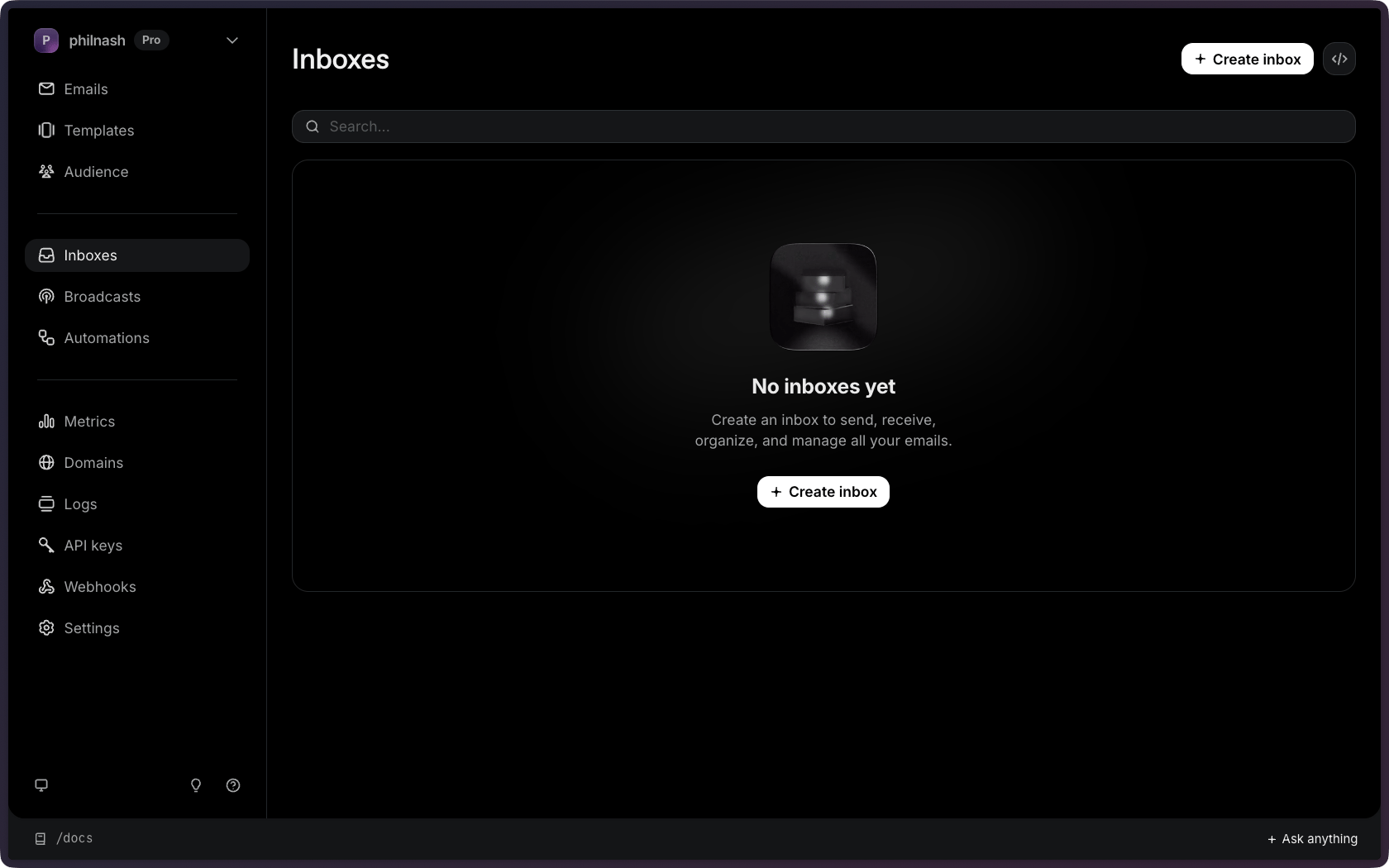
Navigate to the Inboxes Dashboard page.
The Inboxes page shows all of your existing
inboxes, and allows you to add new ones.
2
Click the Create inbox button.
3
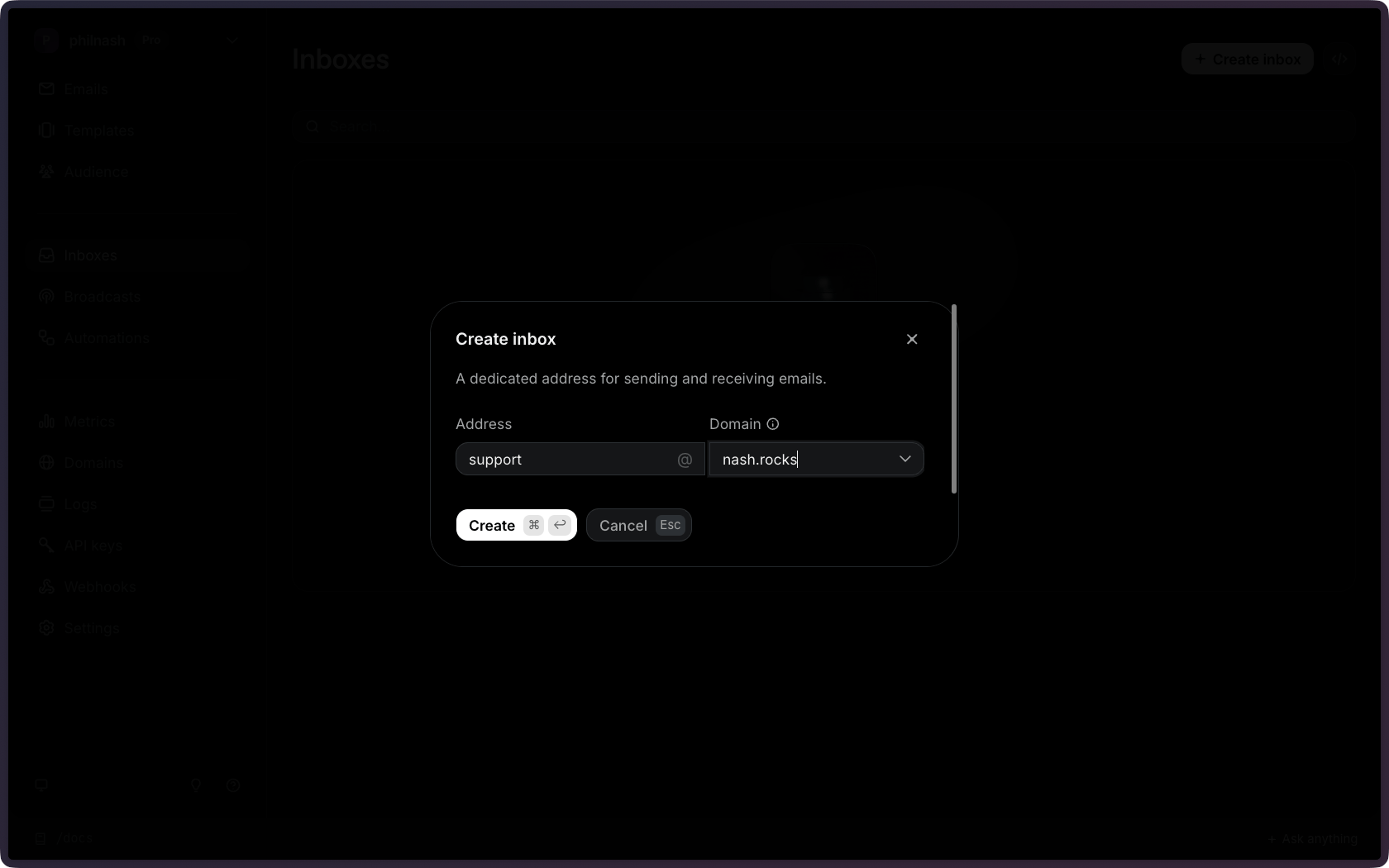
Enter the address.
Type the part before the
@, for example support.4
Choose the domain from your list of verified domains.
5
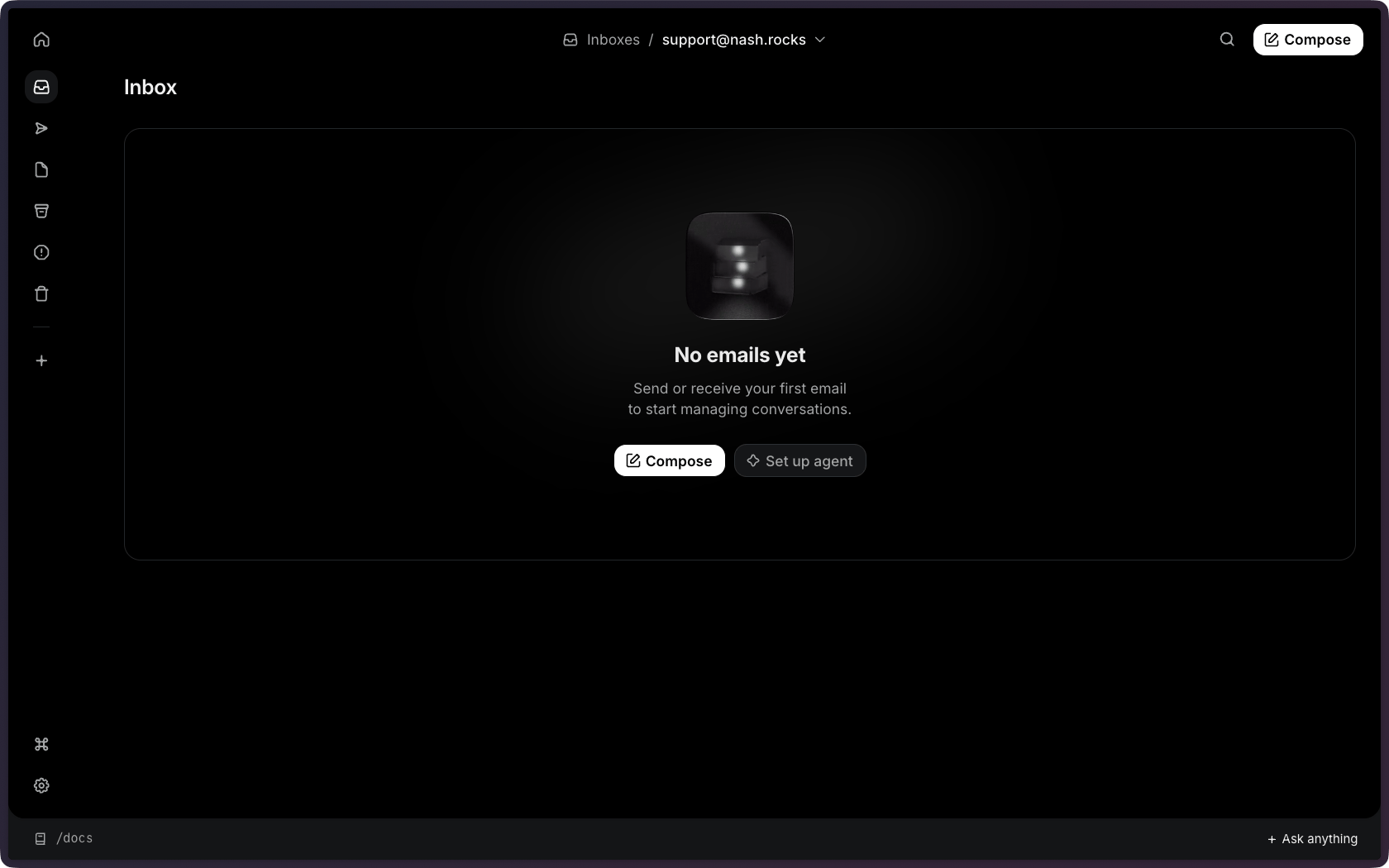
Start sending emails from your new inbox.
Using the API
Forward an existing address
If your domain is not verified for receiving emails you have two options. You can either enable receiving for your domain with an MX record or set up forwarding. The Dashboard makes these options available to you. If you are using the API and you can’t add an MX record for the domain, setforwarding to true when creating the inbox. Resend provisions a receiving address for the inbox. Retrieve the inbox to read its receiving_address, then forward your existing mailbox to that address. Forwarded emails arrive in the inbox as threads.
Forwarding is useful when your domain’s MX records already point at another
mail provider and you don’t want to change them.